How to Create Strong Passwords and Keep Them Safe
By Everyday Guide Hub Editorial Team · Last updated May 14, 2026
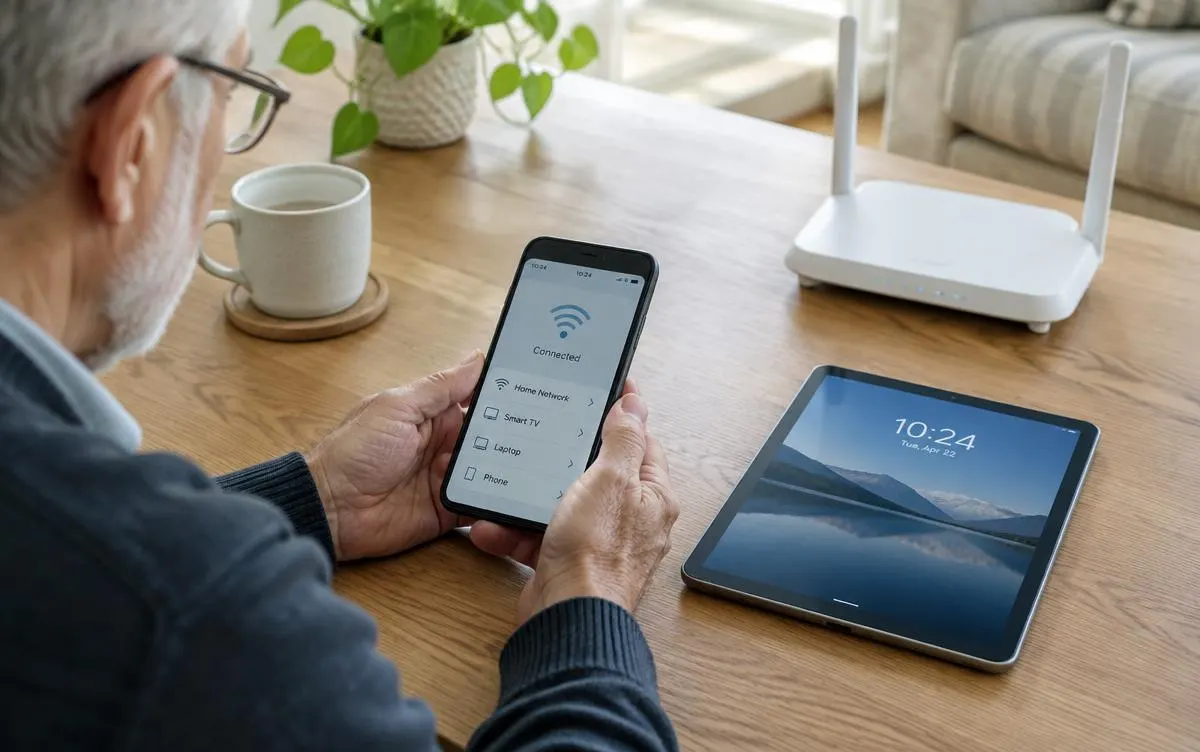
Strong passwords are unique, hard to guess, and stored thoughtfully. A password manager and a few careful habits can make account security easier to maintain.
Understand what makes a password strong
A password protects access to an account, so it should be difficult for someone else to guess and different from passwords used elsewhere. Length is important: a longer password or passphrase usually gives more protection than a short word with a few predictable substitutions. A phrase made from several unrelated words can be easier to remember and harder to guess than a familiar name followed by a number.
Avoid details that other people could learn or infer, such as a birthday, pet’s name, address, favorite team, or a simple sequence. Do not rely on common substitutions, like replacing the letter “o” with zero. Attackers can try common words, reused passwords, and known patterns automatically. A password that looks unusual to a person is not necessarily difficult for software to test.
The best practical rule is to use a different password for every important account. If one service is breached and a password is reused, someone may try that same combination elsewhere. Unique passwords limit the damage. This matters especially for email, banking, cloud storage, shopping, and social accounts because they can contain sensitive information or help reset other accounts.
Use a password manager
A password manager can create and store strong, unique passwords so you do not have to memorize each one. Many phones and browsers include password-saving features; dedicated password managers are another option. Choose a reputable tool that fits your devices and learn how it handles syncing, backups, and recovery before moving all your passwords into it.
The manager itself needs a strong master password. Make it long, unique, and memorable to you, without using a familiar quotation or personal detail. If the manager offers multi-factor authentication, consider enabling it. Understand the recovery process before you rely on the manager: losing access to the vault can make other accounts harder to reach. Store any recovery key in a secure place separate from the device.
Use the manager’s password generator when creating a new account or changing an old password. Follow the website’s allowed length and character rules. If the site rejects a generated password, adjust the generator to meet those rules rather than falling back to a reused password. Save the new login in the manager and confirm you can sign in before closing the session.
Make a passphrase memorable
If you need to remember a password, a passphrase can help. Choose several unrelated words and avoid phrases that are common, quoted, or personally meaningful in an obvious way. Do not use a phrase already used for another account. If a service limits length, choose the longest acceptable option that is still practical.
You may also find helpful: Simple ways to speed up a slow computer
Add another layer with multi-factor authentication
Multi-factor authentication (MFA) asks for an additional proof of identity beyond the password. Depending on the account, that might be an authenticator app, a security key, a device prompt, or a one-time code. MFA can reduce the risk of account takeover if a password is stolen, though it does not make an account invulnerable.
When available, use an option that suits your circumstances and the service’s support. A security key or authenticator app may be preferable to text messages for some accounts, but access and recovery matter too. If you change phones, make sure you can transfer or restore authenticator access. Save backup codes provided by the service somewhere secure and separate from the device used for sign-in.
Treat one-time codes as private. A legitimate sign-in screen may ask you to enter a code, but an unexpected caller or message asking you to read a code aloud is a warning sign. Someone may be trying to sign in as you. Stop and contact the service using a known, official route if a request feels suspicious.
Keep recovery options current
Accounts often use a recovery email address or phone number when you forget a password. Check that those details still belong to you and that you can access them. Recovery email accounts deserve strong, unique passwords and MFA because they can unlock other accounts. Avoid using an old work email or a number you may soon lose.
Store and share passwords safely
Do not send passwords in ordinary email or text messages. Avoid putting them in an unprotected note, document, or spreadsheet, especially on a shared device. A password manager is generally safer for storing logins. If you must write down a password, keep the paper in a secure, private place and do not label it in a way that makes the account obvious to a visitor.
Do not share one password among family members or coworkers. If another person needs access to a service, look for an account-sharing, delegated-access, or family feature. Those options allow people to have separate sign-ins and can make it easier to remove access later. For a shared household account without that capability, agree on a secure method rather than sending credentials through casual messages.
Be cautious when entering passwords on shared or public computers. Do not save the password in the browser, sign out when finished, and close the session. On your own devices, use a screen lock and keep the operating system and browser updated. A secure Wi-Fi connection is preferable when signing in to sensitive accounts, but a password still needs to be protected on any network.
Recognize phishing and account warnings
A strong password cannot protect you if you enter it into a fake sign-in page. Unexpected messages may imitate a bank, delivery company, employer, or familiar service and create pressure to act. Instead of using the message’s link, open the organization’s app or type its known address yourself. Check the account there for any real alert.
Do not trust a message solely because it includes your name or looks polished. Be wary of urgent demands, threats, unexpected attachments, and requests for passwords or verification codes. If you are unsure, contact the organization using a phone number or support route you already know. Do not reply with private details.
If you think a password may have been exposed, change it from the service’s official app or site. Change it anywhere else it was reused, then turn on MFA and review recent account activity. Sign out other sessions if the service provides that option. If you cannot access the account, use the official recovery process rather than a phone number supplied in a suspicious message.
Review accounts and keep the habit manageable
Start with the accounts that matter most: email, financial services, cloud storage, and accounts that can reset other passwords. Replace reused or weak passwords with unique ones. A password manager may show reused or exposed passwords, but use its alerts as a prompt to review accounts through their official services rather than clicking an unexpected notification.
Change a password when there is a reason, such as a breach notification, suspected exposure, or sharing that should no longer be in place. Changing every password on a rigid schedule can lead to small, predictable variations that are less useful than unique passwords and MFA. Follow the service’s advice when it confirms a security incident.
Make security part of account setup. Create a unique password, save it in your manager, enable MFA where appropriate, and record recovery options securely. This routine takes a little time at first, but it is easier than trying to remember dozens of logins or recover several accounts after a password has been reused.
Strong password habits are practical rather than perfect. Use unique credentials, protect your email and password-manager accounts especially well, and pause before responding to unexpected requests. Small, repeatable steps can significantly reduce the chance that one exposed password becomes a problem across many services.
Key takeaways
- Use a long, unique password for every account, especially email and financial services.
- A password manager can create and store passwords you do not need to memorize.
- Enable multi-factor authentication and secure backup codes where available.
- Never share one-time codes with an unexpected caller or message.
- If a password is exposed, change it through the official service and replace any reuse.
Frequently asked questions
How long should a password be?
Use the longest password the service allows, preferably generated by a password manager. For a password you must remember, a longer passphrase of unrelated words can be practical.
Is it safe to use a password manager?
A reputable manager can help you use unique passwords instead of reusing them. Protect its master password, enable available MFA, and understand how recovery works.
Should I change all my passwords regularly?
Change passwords when they may have been exposed, are reused, or the service recommends it after an incident. Unique passwords and MFA are more useful than frequent predictable changes.
What should I do if someone asks for a sign-in code?
Do not share it with an unexpected caller or message. Stop, open the service directly through its official app or website, and review the account if you are concerned.
Written and reviewed by the Everyday Guide Hub Editorial Team. Read how we work in our editorial policy.
Continue reading
Technology Made Simple
Simple ways to speed up a slow computer
Before replacing an older laptop or desktop, try these straightforward checks that often improve performance.
3 min read
Technology Made Simple
A beginner's guide to password managers
A password manager can help you use strong, unique passwords without having to remember them all.
3 min read
Technology Made Simple
Home Wi-Fi Basics: How to Get a Faster, More Reliable Connection
A few practical changes can improve home Wi-Fi without replacing everything. Learn where to place a router, how to reduce interference, and when to ask for help.
7 min read