Home Wi-Fi Basics: How to Get a Faster, More Reliable Connection
By Everyday Guide Hub Editorial Team · Last updated September 2, 2026
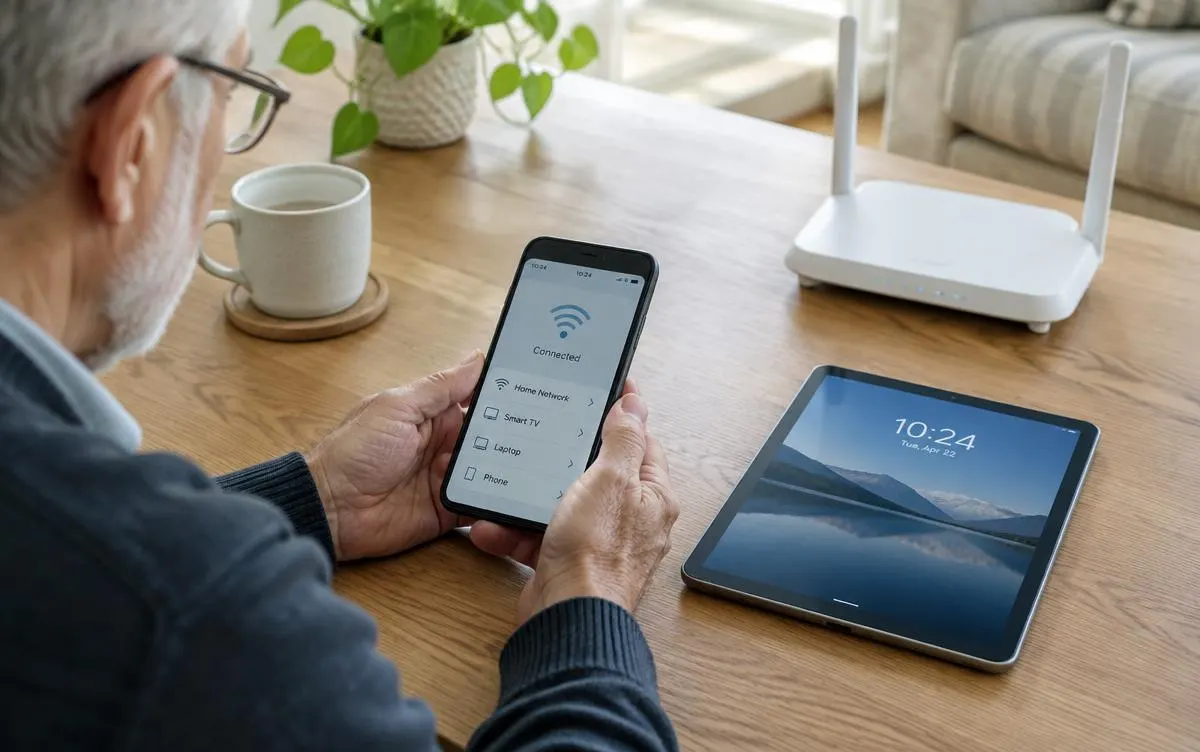
A few practical changes can improve home Wi-Fi without replacing everything. Learn where to place a router, how to reduce interference, and when to ask for help.
Understand what Wi-Fi does
Wi-Fi connects devices in your home to a router without cables. The router usually connects to a modem or another piece of equipment that brings internet service into the home. Some providers combine the modem and router in one box. Knowing which equipment you have can help when checking labels, restarting a connection, or contacting your provider.
A slow connection can have several causes. The internet plan may not provide enough capacity for the number of people and activities at once. The router may be poorly placed, outdated, or experiencing a temporary problem. A single device can also have trouble even when other devices work. Start by identifying whether the issue affects one device, one room, or the entire home.
Internet speed is often described in megabits per second, but a speed test is only a snapshot. Results can vary with the device, time of day, Wi-Fi signal, and other household activity. A video call that stutters in one bedroom may point to weak Wi-Fi coverage there, while every device slowing down at busy times may suggest a plan or service issue.
Put the router in a useful place
Router placement can make a noticeable difference. Put it in an open, central location if practical, rather than inside a cupboard, behind a television, or on the floor. Walls, metal objects, appliances, and dense furniture can weaken a wireless signal. A shelf or table can give the router a clearer path to devices.
Try to keep the router away from sources of interference, such as cordless phones, some wireless devices, and large appliances. Avoid placing it beside a microwave if that area has poor signal when the microwave is in use. Homes with several floors may need the router in a location that serves the rooms used most often. A central location on one floor can be better than a hidden corner on another.
Router antennas, when present, can often be adjusted. Follow the equipment instructions rather than assuming one angle works for every home. If the router has no visible antennas, it may use internal ones. Give the device room to ventilate and do not cover it with fabric or papers. Heat and blocked vents can affect equipment performance.
Check signal in the rooms you use
Try the same task in different locations. If video calls work near the router but not in a distant room, coverage is likely part of the problem. If every room is slow, check the provider connection and other devices before buying a Wi-Fi extender. A simple comparison helps narrow down what to do next.
You may also find helpful: Simple ways to speed up a slow computer
Restart and update equipment safely
If the internet stops working, check that the router and modem have power and that cables are firmly connected. Look at the equipment’s status lights and compare them with its instructions; light patterns differ by model. Avoid unplugging cables at random, especially fiber or provider-specific connections. A loose or damaged cable may need attention from the provider.
A restart can clear a temporary problem. Use the equipment’s power button if it has one, or follow the provider’s instructions for unplugging and reconnecting it. Give the equipment time to reconnect fully before testing. Restarting is different from a factory reset: a factory reset can erase settings and make the network harder to restore, so do not press and hold a reset button unless you intend to reconfigure the equipment or are following trusted support instructions.
Keep router firmware updated when updates are offered through the manufacturer or provider’s official app or interface. Updates can include security fixes and reliability improvements. Some equipment updates automatically. Use the administration details supplied with the router or provider account, and avoid third-party programs that claim to update the router. If you are unsure which update applies, ask the provider or manufacturer.
Secure the network and organize devices
Use the router’s security settings to protect the home network. Set a strong, unique Wi-Fi password and use a modern security option supported by the router and devices. The default password printed on a device may be unique, but changing it can make it easier to remember; use a password manager or another secure method to keep track of the new one. Do not share it publicly.
The router’s administration password controls settings, so it should not be the same as the Wi-Fi password. Change a default administration password if the manufacturer or provider permits it, and store it securely. Turn off remote administration if you do not need it and the equipment offers that setting. Keep the network name recognizable to you without using personal details such as a full name or street address.
A guest network can give visitors internet access without sharing the main network credentials, if your router offers one. It may also be useful for certain smart-home devices, though setup varies. Only connect devices you recognize and still use. Remove old devices from account or network lists when practical, but avoid changing settings if you are unsure what a device does.
Reduce congestion and improve coverage
Many devices share the same home connection. Video streaming, large downloads, online gaming, and cloud backups can use substantial capacity, especially when several happen at once. If calls or streaming struggle during busy periods, pause downloads or schedule backups for a quieter time. This may help without changing the internet plan.
Some routers offer different Wi-Fi bands. A higher-frequency band can provide faster speeds at shorter range, while a lower-frequency band may reach farther but can be slower. Newer routers may manage bands automatically. If your provider’s app exposes settings, follow its guidance rather than changing advanced options without a clear reason. Devices and router models differ.
For a home with dead zones, consider improving coverage with equipment designed for that purpose. A mesh system uses multiple units to extend coverage, while an extender repeats an existing signal. Both need sensible placement and compatible setup. A poorly placed extender may simply repeat a weak connection. If possible, wired Ethernet to a distant access point can provide a more dependable link.
Avoid buying before diagnosing
Before purchasing equipment, check what your provider already supplies, whether the plan supports the speed you expect, and whether the router is the source of the problem. Ask about compatibility, rental charges, and return policies. A new router will not fix an outage or a slow connection caused by the provider line.
Test the connection and talk to your provider
For a useful comparison, run a speed test near the router and then in the room where you notice trouble. Use the same device if possible and pause large downloads. Record the approximate time and results. A wired connection can help distinguish a Wi-Fi issue from a provider or router issue, if your device has an Ethernet port and you can connect safely.
Compare the results with the service plan, but remember that advertised speeds may be a maximum or may refer to wired performance. If speeds are consistently far below what you expect, contact the provider through an official support channel. Tell them which devices are affected, where the problem occurs, when it began, and what checks you have already tried. Ask whether there is an outage or a known equipment issue.
If only one device has trouble, restart that device, check that Wi-Fi is enabled, and install updates through its normal settings. Forgetting and rejoining a network may help, but you will need the correct Wi-Fi password. If several devices fail at the same time, the router, modem, or provider connection is more likely to be involved.
Build a simple maintenance routine
Keep a note of the router model, provider support details, network name, and where the equipment is located. Store passwords securely rather than taping them where visitors can see them. Check cables occasionally for obvious damage and leave the router’s vents clear. Avoid frequent changes to advanced settings when everything is working well.
If problems return, record when they occur and which rooms or devices are affected. A pattern, such as slow service only in the evening or only in one corner, gives useful clues. Keep equipment software current and review network security when you add a new router or change providers.
Reliable home Wi-Fi usually comes from a combination of appropriate service, well-placed equipment, and manageable network use. Begin with simple checks, make one change at a time, and test the result. If the issue appears to be outside your home or requires equipment changes, your provider can help identify the next step.
Key takeaways
- Place the router in an open, central location with room to ventilate.
- Compare performance near the router and in rooms where the signal is weak.
- Restart equipment using provider instructions; avoid an accidental factory reset.
- Use a unique Wi-Fi password and secure the router’s administration settings.
- Record symptoms and contact the provider if the whole home remains slow.
Frequently asked questions
Where should I put my Wi-Fi router?
Choose an open, elevated, central location if possible. Keep it away from cupboards, large obstructions, and sources of interference, and leave its vents clear.
Will restarting the router delete my settings?
A normal restart should not erase settings. A factory reset can erase them, so do not press and hold the reset button unless you intend to reconfigure the router or are following trusted instructions.
Do I need a Wi-Fi extender?
Not necessarily. First check router placement and compare performance in different rooms. If a specific area has weak coverage, an extender or mesh system may help when placed and configured properly.
Why is Wi-Fi slow only in the evening?
More household devices may be active, or service demand in your area may be higher. Note when the slowdown occurs and ask your provider to check the connection if it persists.
Written and reviewed by the Everyday Guide Hub Editorial Team. Read how we work in our editorial policy.
Continue reading
Technology Made Simple
Simple ways to speed up a slow computer
Before replacing an older laptop or desktop, try these straightforward checks that often improve performance.
3 min read
Technology Made Simple
A beginner's guide to password managers
A password manager can help you use strong, unique passwords without having to remember them all.
3 min read
Technology Made Simple
Video Calling Made Easy: A Beginner’s Guide
A few simple checks can make video calls easier, clearer, and less stressful. Learn how to join, adjust sound and camera, and handle common hiccups.
6 min read