Setting Up a Smartphone for an Older Family Member
By Everyday Guide Hub Editorial Team · Last updated April 3, 2026
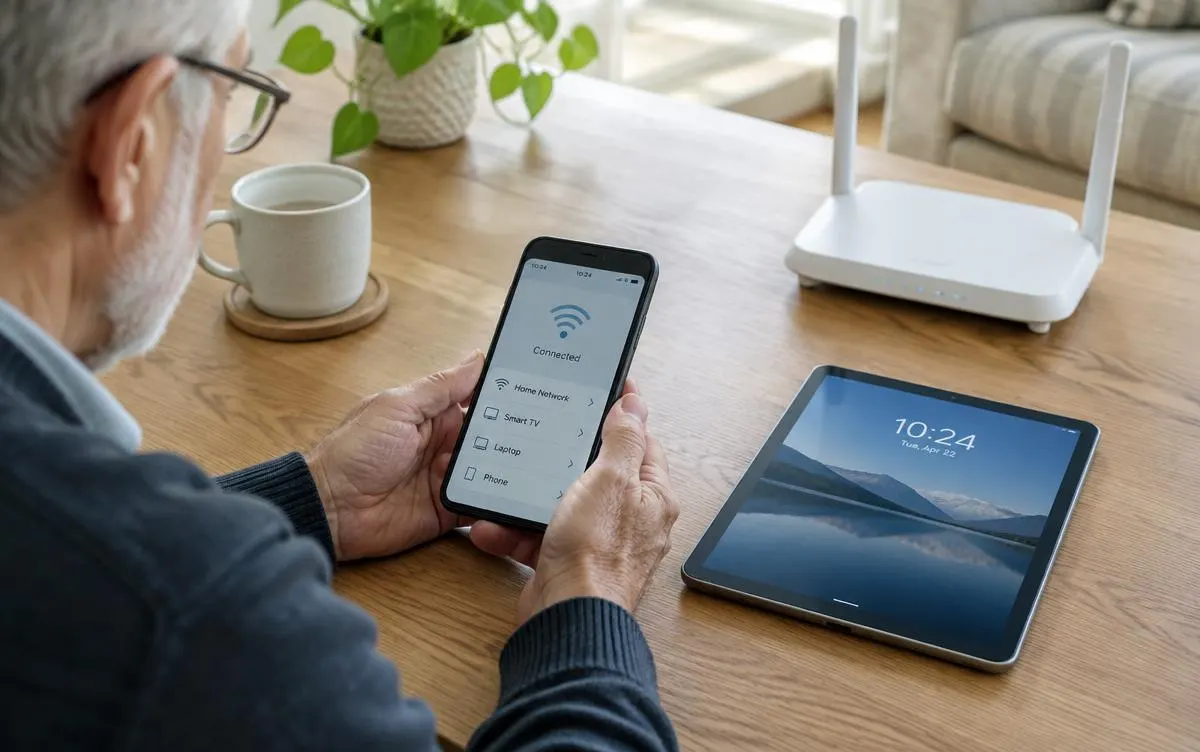
A thoughtful setup can make a smartphone easier and more comfortable to use. Start with the features your family member needs most, then adjust together.
Begin with a conversation
A useful smartphone setup starts with the person who will use it. Before changing settings or installing apps, ask what they want the phone to help them do. They might want to call family, send photos, read messages, check appointments, or have directions available when they are out. Their priorities should guide the setup, rather than a long list of features someone else thinks they ought to use.
Ask what feels difficult about their current phone, if they have one. Small details can matter: text may be hard to read, a case may make buttons awkward, or notifications may be distracting. Find out whether they prefer to learn by watching, trying each step themselves, or keeping written notes. Make changes with them and explain what you are doing. The aim is to make the phone feel familiar and manageable, not to take control of it.
Choose a time when neither of you is rushed. Have the charger, account information, and any old phone nearby. Avoid asking for passwords where other people can hear or see them. If an account needs to be recovered, let the phone owner enter private details themselves whenever possible.
Make the phone comfortable to use
Start with physical comfort and readability. Increase text size if needed, and check that important labels are clear without making screens difficult to navigate. Many phones offer display settings for bold text, contrast, magnification, or reduced motion. Try one adjustment at a time so the person can say whether it helps. A very large font can cause some screens to show less information, so check common tasks such as reading a message and finding a contact.
Adjust brightness to suit the room and consider whether automatic brightness works well for the user. Set a comfortable screen timeout: a short timeout can save power, but a screen that goes dark during reading or a call may be frustrating. A protective case can improve grip, while a screen protector can reduce scratches. Make sure the case does not cover the camera, speaker, charging port, or buttons.
Review sound and vibration settings. Choose a ringtone and notification volume that can be heard without being startling. If hearing is a concern, vibration or visual alerts may help, but too many alerts can make the phone confusing. Try the ringtone and alarm at a normal volume in a quiet room. If the phone has hearing-accessibility features, consider testing them with the person rather than assuming they will be useful.
Keep the home screen simple
Put the most-used apps where they are easy to find. A home screen might include Phone, Messages, Camera, Contacts, and one or two other apps the owner has specifically requested. Remove clutter carefully: deleting an app can remove information or access, while moving an icon is usually reversible. Explain the difference before making changes.
You may also find helpful: Simple ways to speed up a slow computer
Set up calling and contacts
Make sure the phone can make and receive calls using the plan and network available. Add important contacts together and use names the phone owner recognizes. Check that each number is correct, including the country or area code where relevant. For a few key people, a clear photo can make a contact easier to identify, but only add pictures with permission.
Show how to answer and end a call, adjust call volume, and return to the home screen. Practice with a short call while sitting together. If the phone has a favorites or speed-dial feature, add only the contacts the owner chooses. A label such as “Call daughter” can be more helpful than a complicated shortcut, depending on the device.
Set up voicemail if it is part of the phone service. Record a greeting the owner is comfortable sharing, and show how to listen to and delete a message. Some providers use a separate voicemail system, so confirm that the instructions match the service. If voicemail is not needed, discuss whether it can be left unused rather than setting it up by default.
Review emergency options available on the phone and in the region. Some devices can display emergency information or call local emergency services from the lock screen. Explain exactly what these features do and avoid testing emergency calling in a way that could contact responders. Keep any emergency information accurate and share only what the phone owner agrees to store.
Make messages, photos, and apps approachable
Send a practice text together. Show how to open a conversation, type a short reply, and recognize whether a message has been sent. If voice dictation is available, demonstrate it as an option, not a requirement. Dictation may misunderstand names or private details, so encourage a quick review before sending. Make sure the user knows they can ask for help without needing to respond immediately.
Try the camera in a low-pressure way. Take a photo, view it, and explain how to share it with a chosen person. A photo may be stored in a cloud account depending on settings, so discuss where pictures are saved and who can access shared albums. Avoid turning on automatic sharing or location tagging without explaining the implications.
Install only apps that serve a clear purpose. Use the official app store on the phone, check the app’s name and publisher, and avoid tapping installation prompts from unexpected messages or websites. Review what permissions an app requests. A flashlight generally does not need access to contacts, for example. If a permission seems unnecessary, decline it or look for a different app.
Explain notifications and updates
Notifications can announce calls, messages, reminders, and app activity. Too many can bury the alerts that matter. Review settings together and keep important notifications visible while turning off unwanted ones. Explain that a notification is not necessarily urgent and that the owner can open an app later.
Keep the phone’s operating system and apps updated. Updates often include security fixes and improvements, but the screens can look different afterward. Set updates to install automatically when that suits the owner, preferably while the phone is charging and connected to Wi-Fi. Show where to find update settings and explain that a restart may be requested.
Protect the phone and private information
Set a screen lock that the owner can use reliably. Available options vary: a passcode, PIN, pattern, fingerprint, or face recognition may be offered. Choose an option the owner understands and can remember, and do not write a passcode on the phone case. If a trusted family member needs to help with recovery, agree together on a safe way to store recovery information. The owner should know who has access.
Explain that a legitimate support person should not need the owner to read a one-time sign-in code aloud to an unexpected caller. Be cautious with messages claiming that an account is locked, a package is delayed, or urgent payment is due. If something seems concerning, pause and contact the organization through a known number or the official app. Do not install remote-control apps at the request of an unsolicited caller.
Turn on the phone’s built-in device-finding feature if the owner wants it and understands what information it uses. Confirm that the feature is tied to the right account and that recovery options are current. A backup can help restore contacts and photos if a phone is lost, but it may store information online. Discuss what is backed up and choose settings together.
Practice, document, and revisit
Finish by practicing a handful of everyday tasks: unlocking the phone, calling a favorite contact, reading a message, taking a photo, and charging the device. Let the owner perform each step, even if it takes longer. Offer a short written guide in large, clear print with a few steps per task. Avoid recording passwords in that guide.
Agree on how the owner can ask for help. A regular check-in can identify confusing alerts or settings before they become a problem. After a week, ask what works and what does not. Revisit settings together rather than assuming the first setup is permanent. New apps, updates, eyesight changes, and changing routines can all affect what feels comfortable.
A good setup is not the most locked-down or feature-packed one. It is the one that supports the owner’s routine, protects their privacy, and leaves them feeling confident using their own device. Keep explanations calm and specific, celebrate progress, and make it clear that learning can continue at the user’s pace.
Key takeaways
- Ask what the phone owner wants to do before changing settings.
- Adjust text, sound, and the home screen together, one change at a time.
- Practice calls, messages, photos, and emergency features without rushing.
- Use a screen lock and discuss backups and privacy in plain language.
- Revisit the setup after the person has had time to use the phone.
Frequently asked questions
Should I set up the phone before giving it to my family member?
You can charge it and make sure it turns on, but involve the owner in choices about accounts, accessibility, contacts, privacy, and security. Their preferences should shape the setup.
What is the best screen lock for an older adult?
There is no single best option. Choose one the owner can use consistently and understands, such as a PIN or a device-supported biometric option. Keep recovery information secure.
How many apps should be on the home screen?
Start with the few apps the owner expects to use most. Add others when they ask for them, and avoid removing apps until you know whether the phone depends on them.
How can I help without taking over?
Explain each change, ask permission, and let the owner perform the steps. Offer a simple written reminder and agree on a comfortable way to ask for help.
Written and reviewed by the Everyday Guide Hub Editorial Team. Read how we work in our editorial policy.
Continue reading
Technology Made Simple
Simple ways to speed up a slow computer
Before replacing an older laptop or desktop, try these straightforward checks that often improve performance.
3 min read
Technology Made Simple
A beginner's guide to password managers
A password manager can help you use strong, unique passwords without having to remember them all.
3 min read
Technology Made Simple
Home Wi-Fi Basics: How to Get a Faster, More Reliable Connection
A few practical changes can improve home Wi-Fi without replacing everything. Learn where to place a router, how to reduce interference, and when to ask for help.
7 min read