Video Calling Made Easy: A Beginner’s Guide
By Everyday Guide Hub Editorial Team · Last updated June 8, 2026
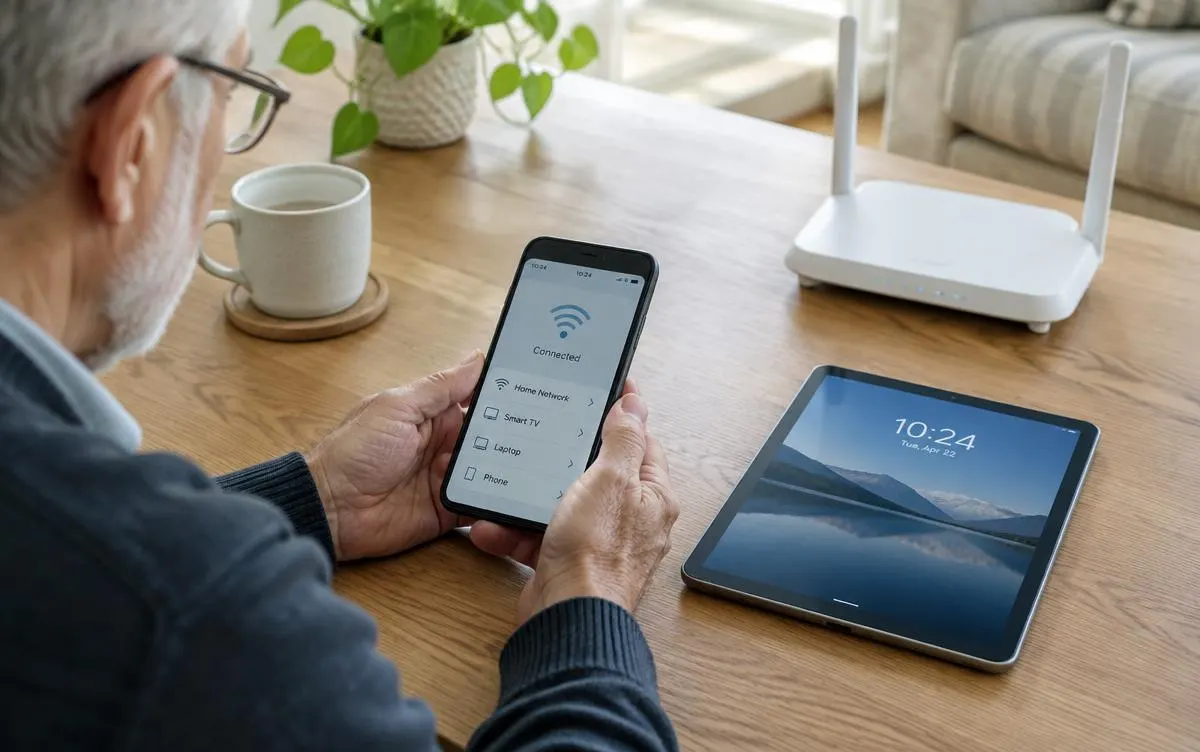
A few simple checks can make video calls easier, clearer, and less stressful. Learn how to join, adjust sound and camera, and handle common hiccups.
Choose a simple way to call
Video calls let people talk while seeing one another, using a phone, tablet, or computer. The steps vary by service, but most calls need a device with a camera and microphone, an internet connection, and an app or web page. Start by asking what the other person already uses. Choosing a familiar service can be easier than setting up something new for a single call.
Install calling apps from the device’s official app store or use a service’s known website. Check the app’s name and publisher before installing, and avoid links in unexpected messages. Some calls work in a browser, while others require an app. If the service sends an invitation, confirm that it came from someone you recognize before opening it.
Use a device with enough battery or plug it in. A larger screen can make it easier to see faces, while a phone may be more convenient to hold. Set the device on a stable surface if holding it becomes tiring. A stand or a stack of books can keep the camera steady and free both hands.
Prepare the room and device
Choose a quiet, comfortable place with light in front of you rather than a bright window behind you. Face a lamp or window if possible, but avoid placing a strong light directly in your eyes. The other caller does not need a perfect background; a tidy, ordinary room is fine. If there is private information in view, move it out of the camera’s frame.
Check that the camera lens is not covered and the microphone openings are clear. Place the camera roughly at eye level. Looking toward the camera occasionally can make the conversation feel more direct, but it is normal to look at the screen to see the other person. On a phone or tablet, a stand can help maintain a comfortable position.
Use headphones if the room has echo or if privacy matters. Wired or wireless headphones with a microphone can make voices clearer, but check that they are connected to the device before the call. If sound is already clear through the device, headphones are optional. Keep the volume comfortable and avoid turning it up so high that sound feeds back into the microphone.
Check your connection
A stable internet connection matters more than having the newest device. If the call freezes, move closer to the Wi-Fi router or use a stronger connection if available. Pause large downloads or streaming on the same network. When Wi-Fi is unavailable, a mobile connection may work, but data use can add up depending on the plan and call quality.
You may also find helpful: Simple ways to speed up a slow computer
Join the call and learn the controls
For a planned call, open the service a few minutes early. If you received a meeting invitation, use the expected link or enter the meeting details through the service. Check the caller or meeting name before joining. Some services offer a waiting room where the host must admit you; wait there rather than repeatedly tapping unfamiliar buttons.
Most call screens include controls to mute the microphone, turn the camera on or off, change the view, and leave the call. The microphone icon often shows whether you are muted. If others cannot hear you, check that you have not muted yourself and that the app has permission to use the microphone. If they cannot see you, make sure the camera is on and the app has camera permission.
A quick test before the conversation can reduce stress. Many services provide a preview or test-call feature. Otherwise, ask a trusted person to help check sound and framing. Keep the device’s volume buttons nearby and learn how to switch between speaker and headphones. If a control’s meaning is unclear, pause and ask the other person rather than making several changes at once.
Take turns naturally
Video calls can have a slight delay. Leave a short pause after someone finishes speaking, especially in a group, so people do not talk over one another. If sound breaks up, one person at a time can speak. Muting when not speaking may reduce background noise, but remember to unmute before responding.
Handle common problems calmly
If you cannot hear the other person, check the device’s volume and whether audio is routed to headphones or a connected speaker. Make sure the call app is not muted. Ask the other person to check their microphone too. Leaving and rejoining can sometimes help, but first agree that the other person will stay on the call or reconnect.
If the other person cannot hear you, look for a muted microphone icon. Check that the app has permission to use the microphone in the device settings. Disconnect and reconnect headphones if they are not working. A brief test recording or call to a trusted person can help identify whether the issue is the app, the accessory, or the device.
If the picture freezes or looks blurry, try moving closer to the router, turning off other bandwidth-heavy activities, or switching off your camera temporarily. A lower-quality picture may still allow a useful conversation. If the call drops, use the same invitation or contact the other person using a method you already trust. Avoid following unexpected pop-ups that claim to fix the connection by installing remote-access software.
Restarting the app or device can help with persistent problems, but save anything important first. Install updates through the official app store or the device’s built-in update settings. If the problem continues, ask the service’s official support or someone you trust for help. Do not give account passwords or one-time sign-in codes to a stranger offering unsolicited support.
Be considerate and protect your privacy
Tell people if you plan to record a call, and follow the service’s rules and the laws that apply where you live. A meeting’s recording feature may notify participants, but do not assume every participant has seen the notice. If you do not want to be recorded, ask the host about the options before sharing sensitive information.
Use the service’s privacy controls to decide who can join and whether a meeting needs a passcode or waiting room. Do not post an invitation publicly if it is intended for a private group. Check that the name displayed in the call is appropriate, especially on a shared device. When the conversation is over, select the leave or end-call control and confirm the camera and microphone are no longer active.
Be cautious about unexpected requests during a call. A familiar face can be imitated, and an account may be compromised. If someone asks for money, passwords, verification codes, or urgent action, verify the request separately using a known phone number or another trusted channel.
Make the conversation comfortable
Keep the device positioned so you can sit comfortably. A video call does not need to be long to be meaningful. For a group call, agree on who is leading and how people can join the conversation. In a one-to-one call, speak clearly and allow time for the other person to respond.
If hearing or vision is a concern, explore captions, larger text, or a bigger screen when the service supports them. Captions can be useful but may mishear names and technical terms. Do not assume every app offers the same accessibility features. A regular phone call may be a better alternative if the video setup is distracting or tiring.
After the call, close the app if you want and put the device somewhere easy to find. If you expect another call, keep the device charged and make a note of the basic steps that worked. Learning a few familiar controls is usually enough; there is no need to master every feature at once.
Video calling is a conversation, not a performance. A little preparation helps, but minor delays and imperfect lighting are normal. Focus on hearing one another, use controls as needed, and switch to an ordinary phone call if that makes the conversation easier.
Key takeaways
- Use a familiar, trusted calling service and prepare the device before the call.
- Place the camera steadily near eye level and choose a quiet, well-lit spot.
- Check mute, camera, volume, and app permissions if something is not working.
- Move closer to Wi-Fi or reduce other network use if the call freezes.
- Protect meeting invitations and never share passwords or sign-in codes during a call.
Frequently asked questions
Do I need a special camera for video calls?
Most recent phones, tablets, and laptops have a built-in camera and microphone. You can use external equipment if you want, but it is not usually necessary for a basic call.
Why can I see someone but not hear them?
Check your device volume, audio output, and mute settings. The other caller may also have their microphone muted or may need to check their app permissions.
Can I join a video call without installing an app?
Some services let guests join through a web browser, while others require an app. Use the service’s official instructions and avoid unexpected installation links.
What should I do if a video call keeps freezing?
Move closer to the Wi-Fi router, pause other heavy internet use, or turn off your camera temporarily. If needed, reconnect using a trusted invitation or switch to a phone call.
Written and reviewed by the Everyday Guide Hub Editorial Team. Read how we work in our editorial policy.
Continue reading
Technology Made Simple
Simple ways to speed up a slow computer
Before replacing an older laptop or desktop, try these straightforward checks that often improve performance.
3 min read
Technology Made Simple
A beginner's guide to password managers
A password manager can help you use strong, unique passwords without having to remember them all.
3 min read
Technology Made Simple
Home Wi-Fi Basics: How to Get a Faster, More Reliable Connection
A few practical changes can improve home Wi-Fi without replacing everything. Learn where to place a router, how to reduce interference, and when to ask for help.
7 min read